Capacity Planning#
The Capacity Planning feature in the app provides insights into resource usage and allocation across the cluster to help manage computing resources efficiently. It consists of three main sections:
1. Graphical Representation#
a. Node filtering based on Labels#
This part will allow users to group nodes based on their labels, to change how the data should be visualized for them.
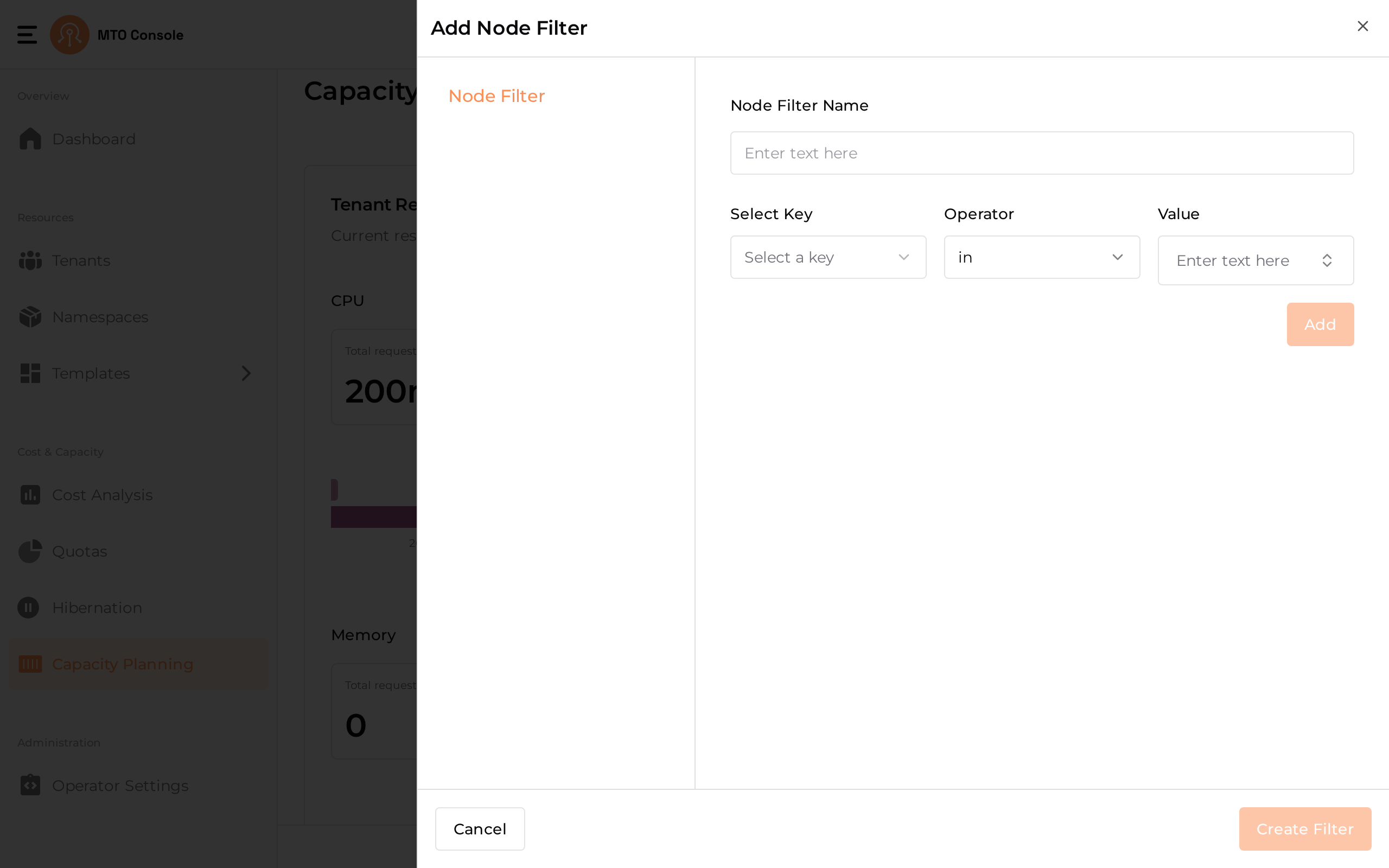
Click the Add Node Filter button on the top-right of the Capacity Planning page to open the drawer. Provide a Node Filter Name and one or more node label selectors in the form of MatchExpressions. For each selector, choose the Select Key, Operator (default in), and Value, then click Add. Click Create Filter to save.
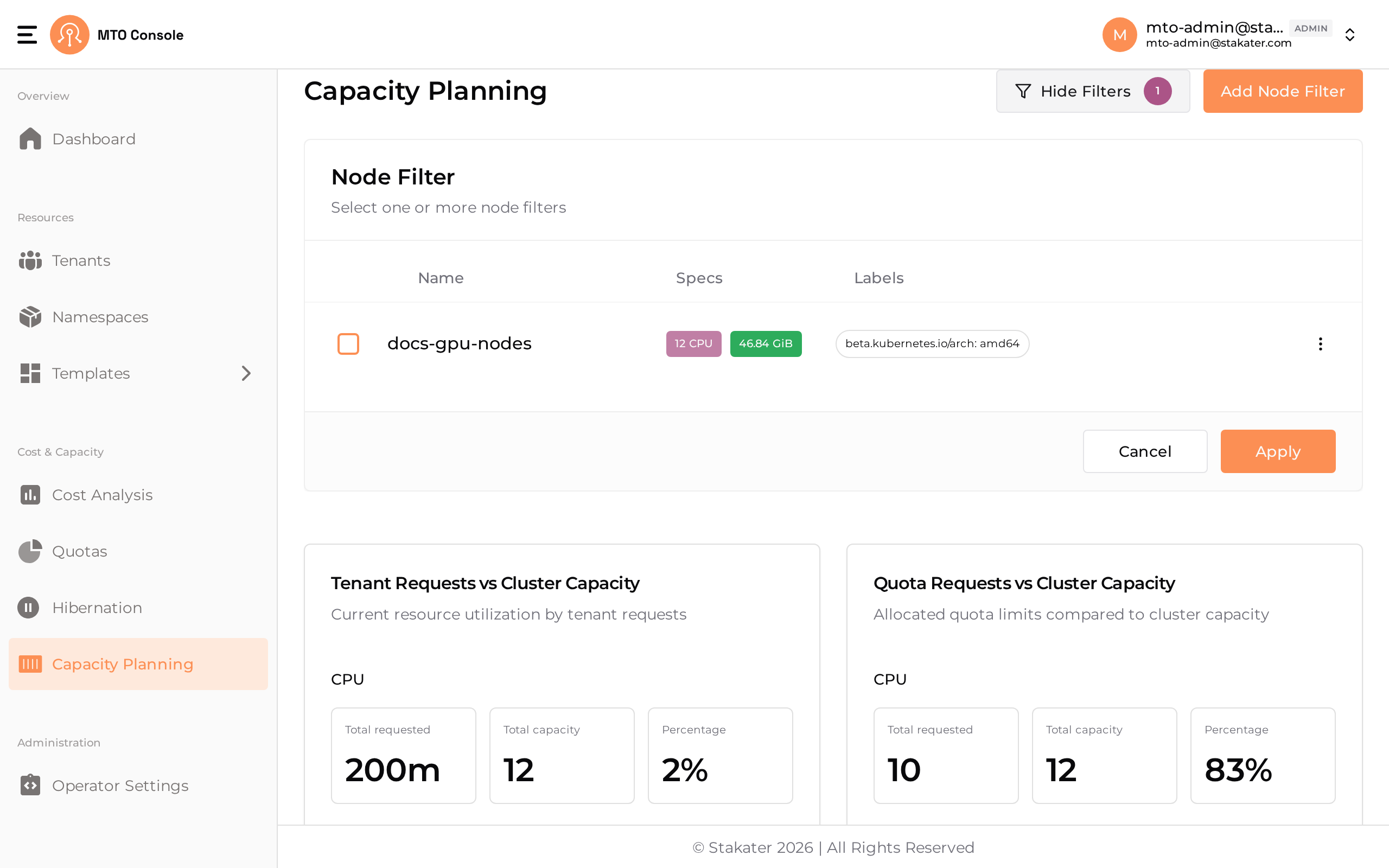
After creation, node filters appear in the Node Filter table with Name, Specs, and Labels columns. Select one or more filters and click Apply to update the charts below.
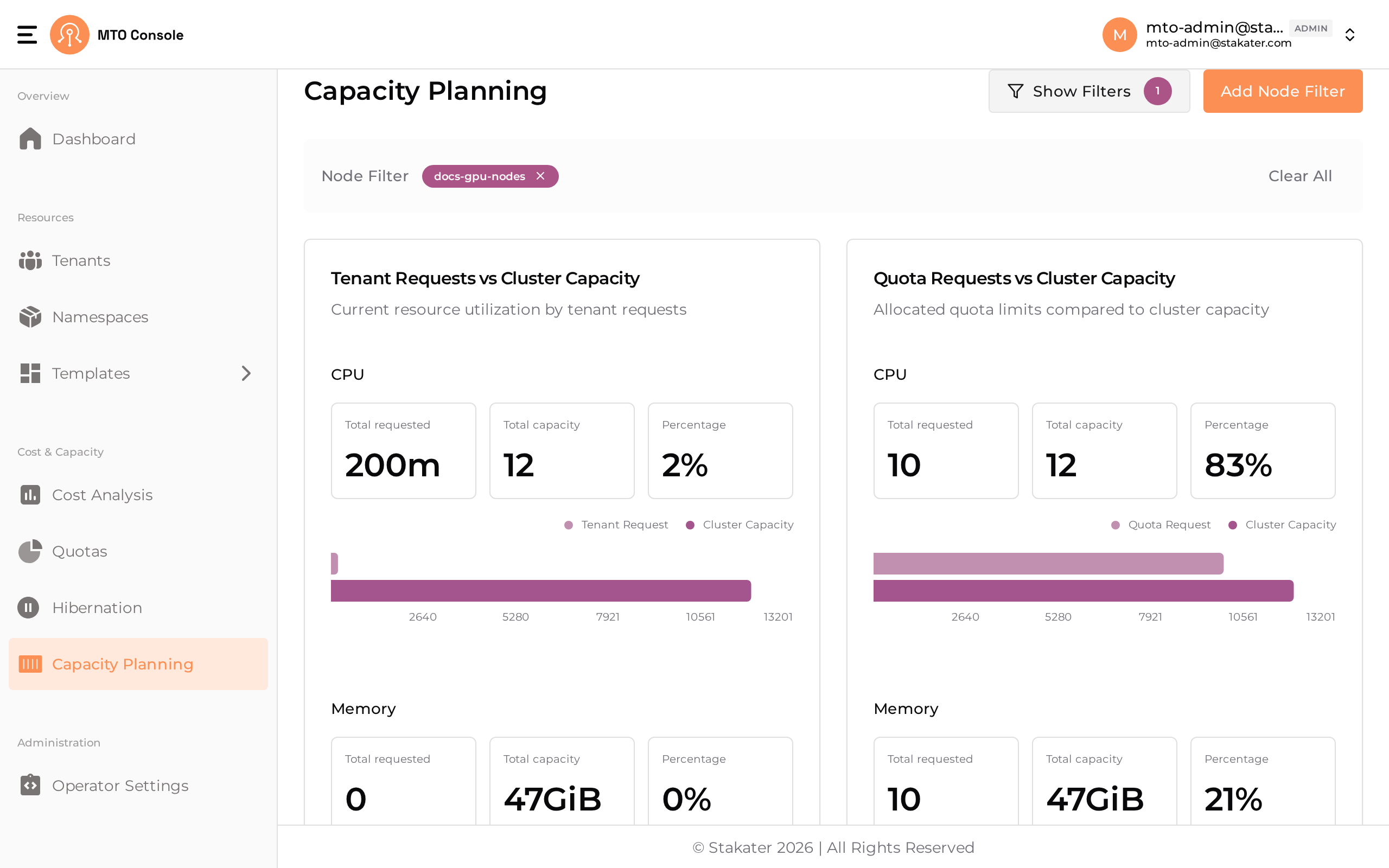
When a filter is applied, the data in the next two parts changes accordingly. The selected filter is shown as a chip at the top with a Clear All option, and the filter table can be collapsed using the Hide Filters / Show Filters toggle.
b. Tenant Requests vs. Cluster Capacity#
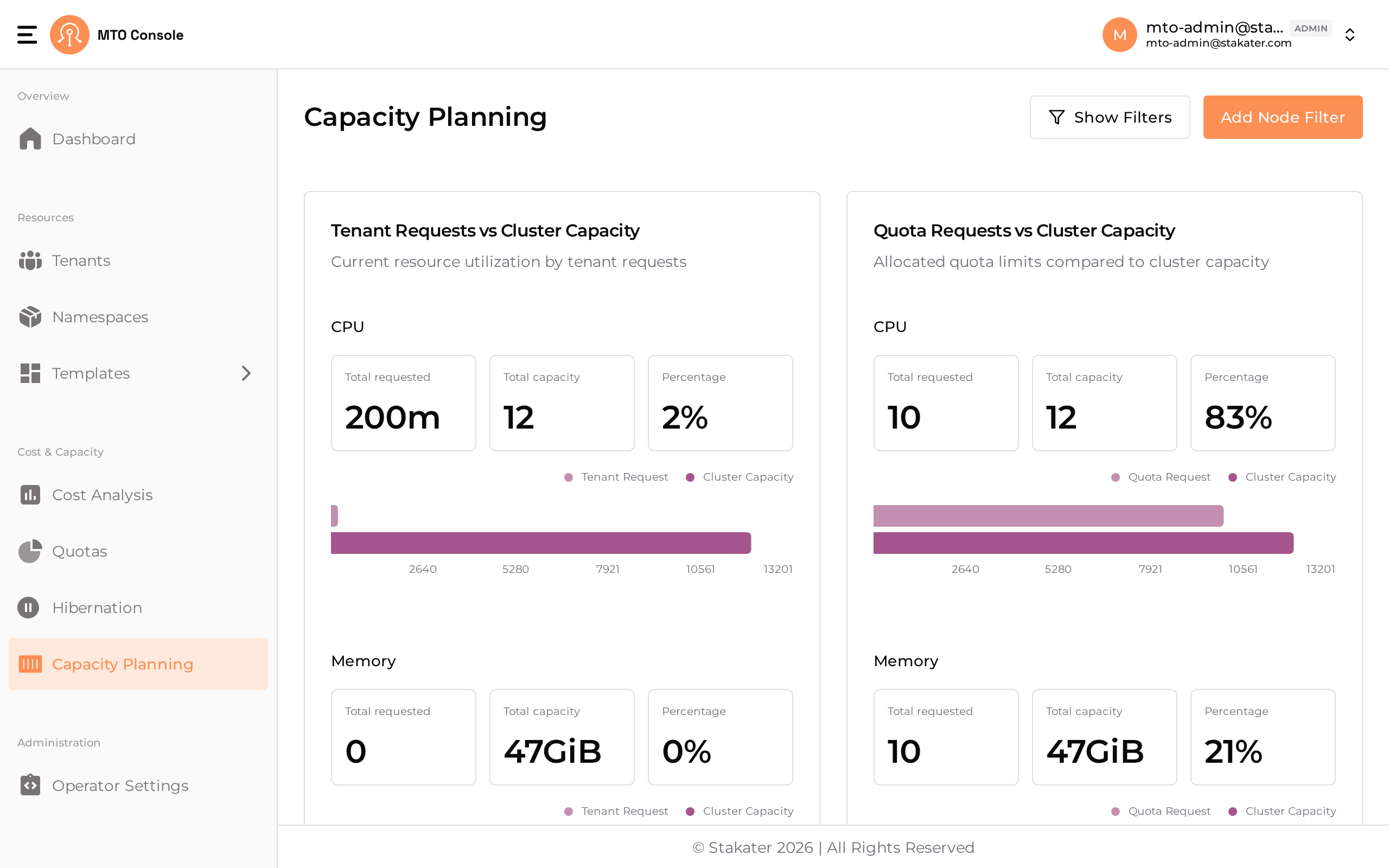
This section displays bar charts that compare the current resource requests from tenants (like CPU and memory) with the total available cluster capacity. The charts visually represent how much of the cluster’s resources are currently being utilized versus what is available, helping identify over-utilization or under-utilization scenarios.
c. Quota Requests vs. Cluster Capacity#
Similar to the tenant requests, this section compares the quota requests against the total cluster capacity. It allows administrators to see if the quota assigned is in line with the cluster's actual capacity.
2. Node Capacity#
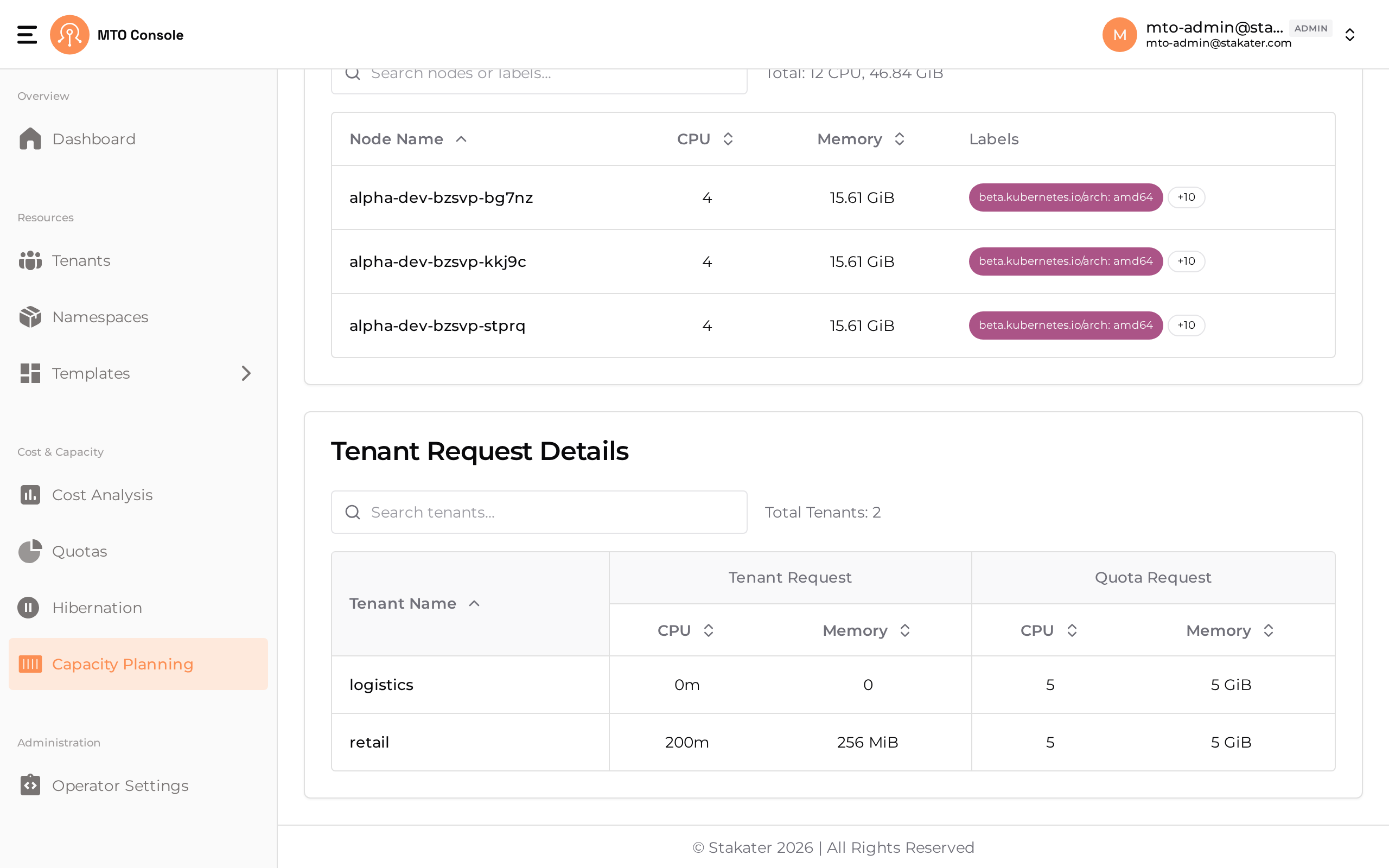
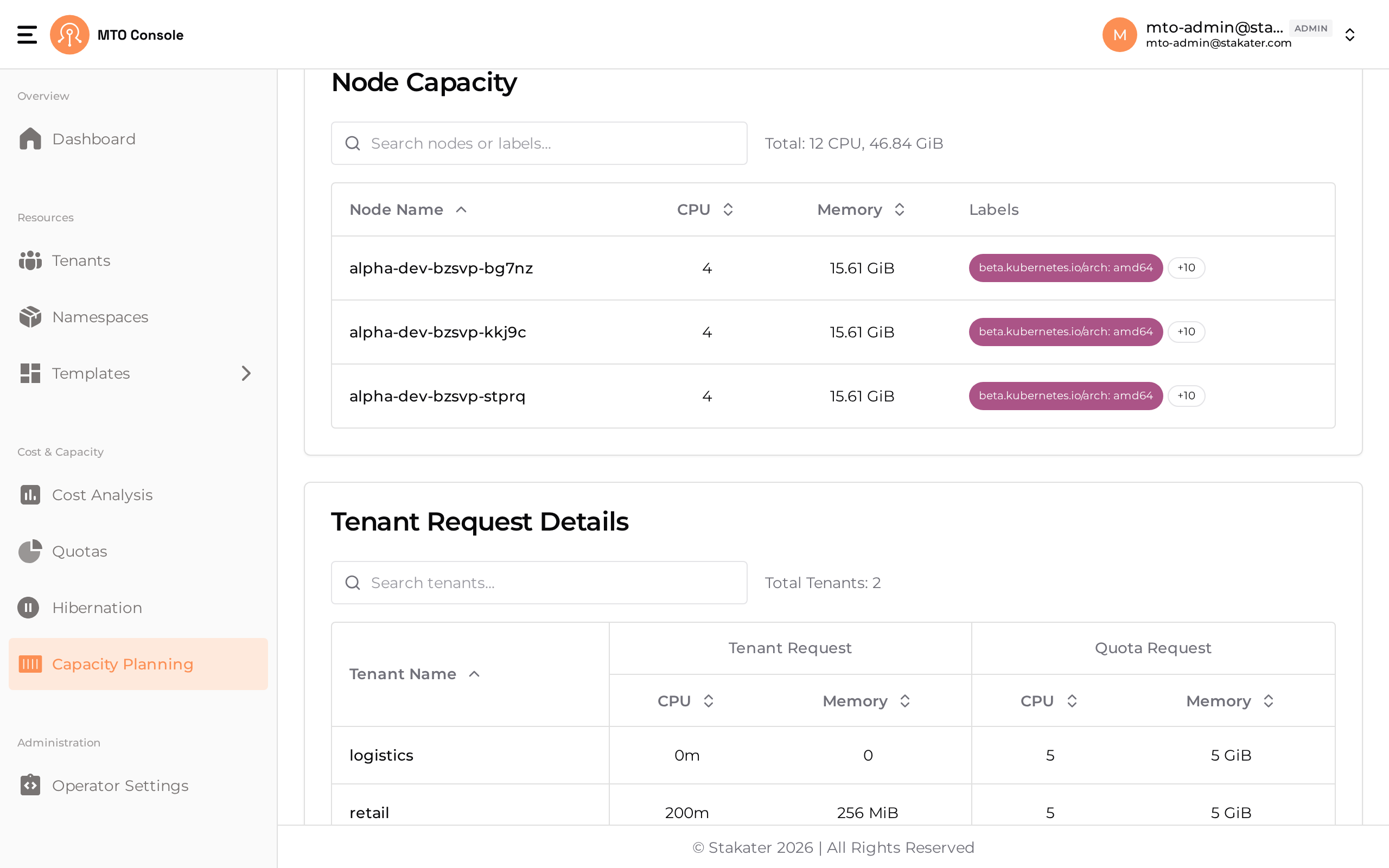
A detailed table lists the worker nodes in the cluster, displaying each node’s CPU and memory capacity along with various labels that indicate the node’s configuration and role (e.g., worker, infra). This information helps in identifying resource distribution across nodes and managing workloads accordingly.
3. Tenant Request Details#
This table provides a breakdown of the resource requests from different tenants, displaying both the requested resources (CPU and memory) and the allocated quotas. It helps to monitor if tenant requests align with the quotas set for each tenant, ensuring optimal resource management.