Install MTO on EKS#
Once the necessary preparations are complete, you can proceed with the installation section.
The installation process consists of two steps:
Install MTO Core#
We will be using helm to install the operator.
helm install tenant-operator oci://ghcr.io/stakater/public/charts/tenant-operator --namespace multi-tenant-operator --create-namespace
We will wait for the pods to come in running state.
Enable MTO Console#
Execute the following command to enable MTO console
kubectl patch integrationconfig tenant-operator-config \
  -n multi-tenant-operator --type merge --patch "{
  \"spec\": {
    \"components\": {
      \"console\": true,
      \"ingress\": {
        \"host\": \"mto.<FULL_SUBDOMAIN>\",
        \"tlsSecretName\": \"<SECRET_NAME>\",
        \"ingressClassName\": \"nginx\"
      },
      \"showback\": true
    }
  }
}"
| Placeholder | Description |
|---|---|
<FULL_SUBDOMAIN> |
Full subdomain of the EKS cluster e.g. iinhdnh6.demo.kubeapp.cloud |
<SECRET_NAME> |
Name of the secret that should be used as TLS secret |
All MTO components share this host, the Console on / and the Gateway, Dex and FinOps Gateway on their own path prefixes. On Kubernetes the host has to be set explicitly, there is no cluster domain to derive it from. See Ingress.
Wait for the pods to be ready with the following command
kubectl wait --for=condition=ready pod -n multi-tenant-operator --all --timeout=300s
List the ingresses to access the URL of MTO Console
> kubectl get ingress -n multi-tenant-operator

NAME                       CLASS   HOSTS                              ADDRESS                                                                          PORTS     AGE
tenant-operator-console    nginx   mto.iinhdnh6.demo.kubeapp.cloud    ae51c179026a94c90952fc50d5d91b52-a4446376b6415dcb.elb.eu-north-1.amazonaws.com   80, 443   23m
tenant-operator-gateway    nginx   mto.iinhdnh6.demo.kubeapp.cloud    ae51c179026a94c90952fc50d5d91b52-a4446376b6415dcb.elb.eu-north-1.amazonaws.com   80, 443   23m
MTO Console Admin Login#
Patch the following integration config to give privileged access to MTO's default admin user
kubectl patch integrationconfigs.tenantoperator.stakater.com -n multi-tenant-operator tenant-operator-config --type=merge --patch "{
    \"spec\": {
        \"accessControl\": {
            \"privileged\": {
                \"users\": [
                    \"mto@stakater.com\"
                ]
            }
        }
    }
}"
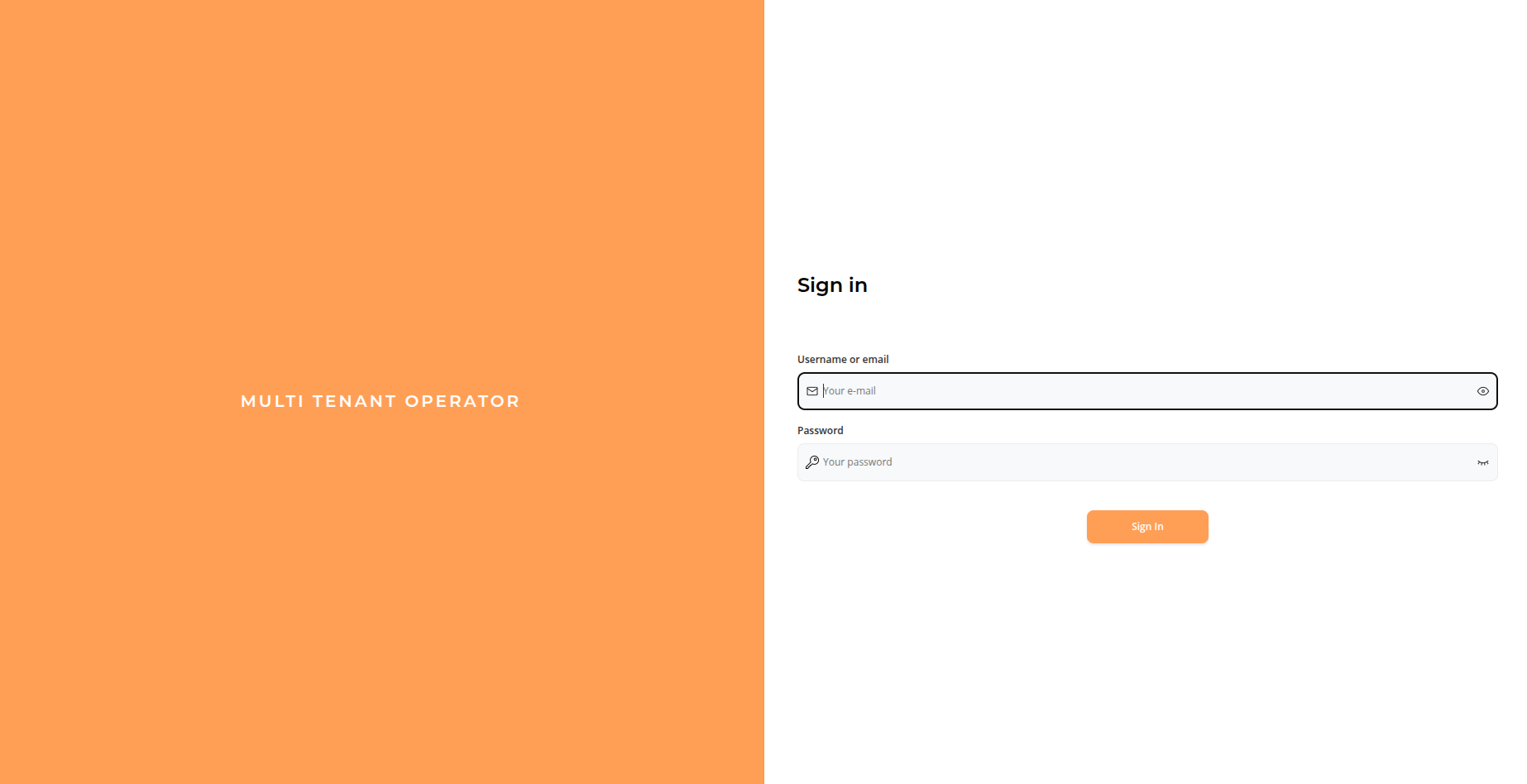
Open the Console URL and Log In with the admin user. Default username and password is mto
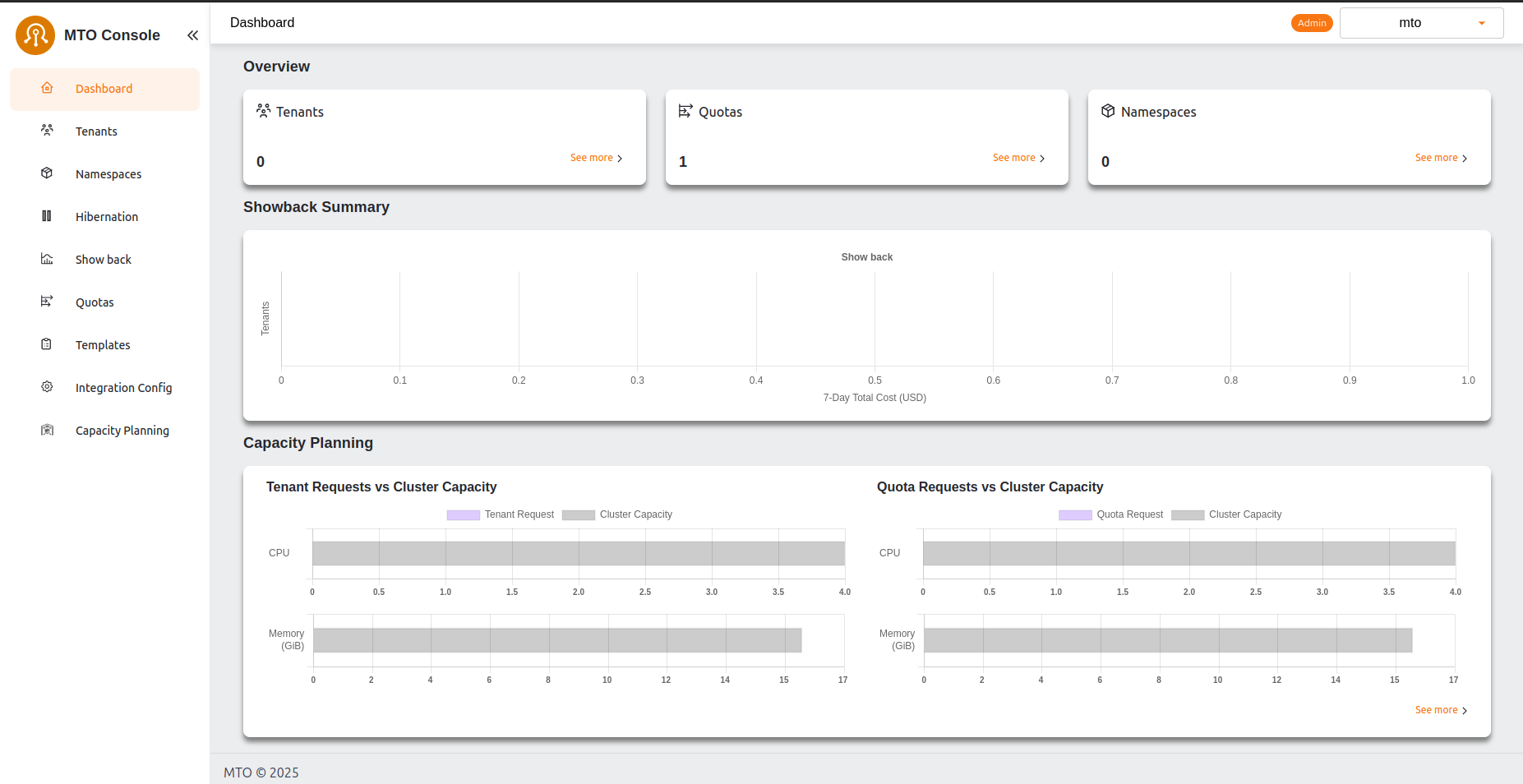
Dashboard will open after the successful login. Currently we don't have any tenants
What's Next#
Now lets create our first tenant on EKS.